


KNOWLEDGE BASE
What would you like to do today?
Getting Started
What is FAcheck?
FAcheck is a state-of-the-art web application that empowers YMCAs to quickly and accurately qualify individuals for financial assistance, all while creating a welcoming experience. By eliminating the need to collect personal documents such as W2s and pay stubs, FAcheck reduces the labor required to verify eligibility for aid. This streamlined process makes it easier than ever for YMCAs to grant financial assistance to their members and grow their membership base, ensuring that more people can benefit from YMCA programs and services.
What Can it Do?
- Check eligibility instantly
- Capture member information
- View recommended assistance levels
- Save and track results
- Sync results with Daxko (if enabled)
Who Uses FAcheck?
FAcheck is designed with YMCA branch staff and administrators in mind—especially those who support members through the financial assistance process—making it easier and more approachable to help every individual get the support they need.
How It Works (Simple Overview)
- Enter member information
- Submit the eligibility check
- Review the results
- Save or print the outcome
Before You Get Started
Navigate to the Account section in the left-side menu. Locate the setting for the automatic qualifying email and select whether you want this feature enabled. When enabled, the system will send an email to all individuals who qualify.
If you choose to enable automatic emails, enter your standardized message in the designated text area on the Account page.
To create additional users, select Branch Users from the left-side menu and click Add Users. Refer to the admin levels chart below for guidance on assigning appropriate permissions.
For additional Association Admin users, submit a request, as these accounts must be created by the system administrator.
Understand Admins/Users and their Roles
Association Admin roles are assigned by us to the person(s) indicated by the Association main contact at the time of setup. Association Admins have the ability to add Branch Administrators and Branch Users.
See the section lower in this page where we explaing in more detail.
Checking Eligibility
Step 1: Enter Member Information
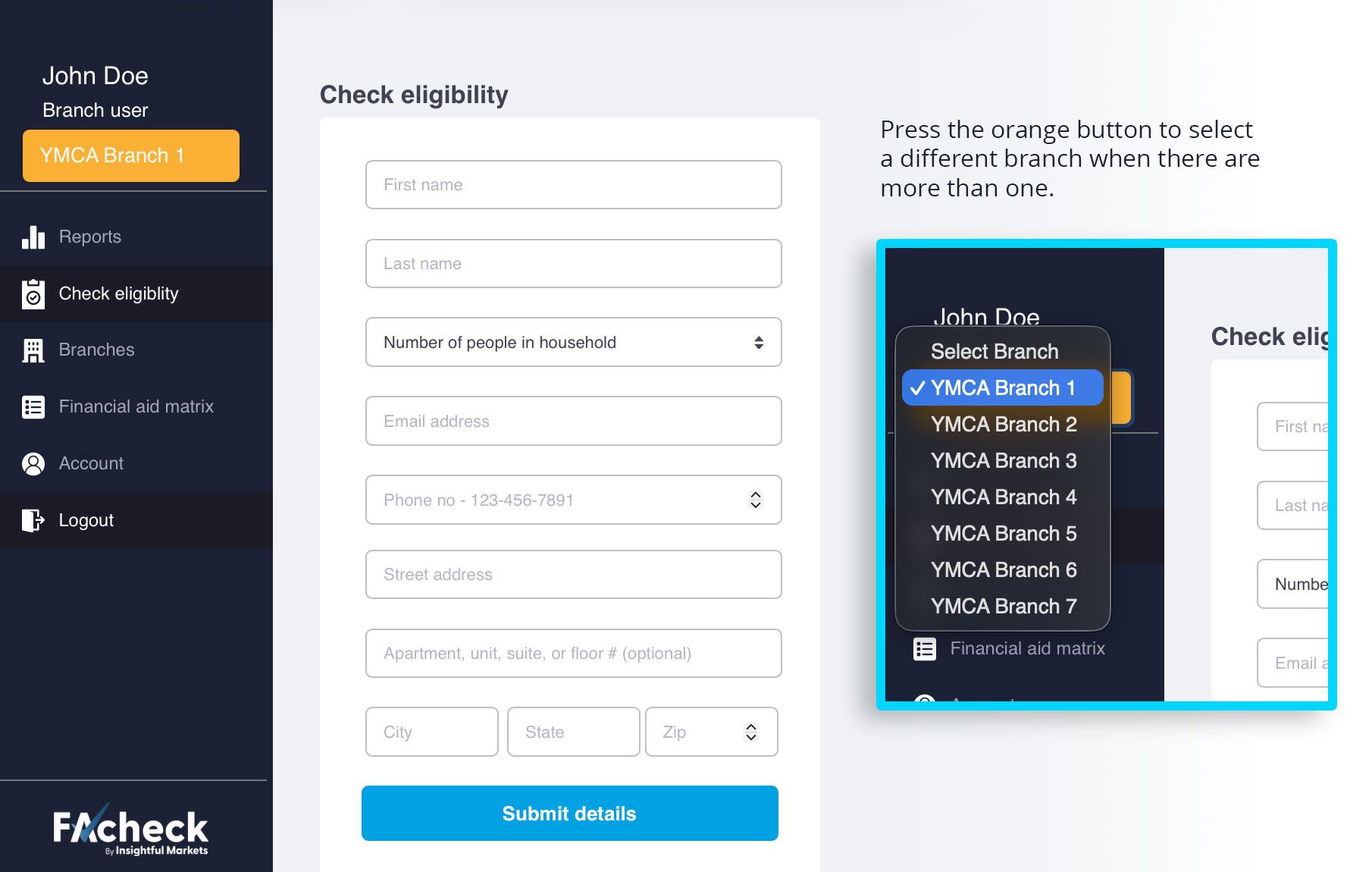
Fill out all required fields including name, household size, email, phone number, and address.
The orange button allows you to select the branch for which a user has been assigned for.
Step 2: Review the Information
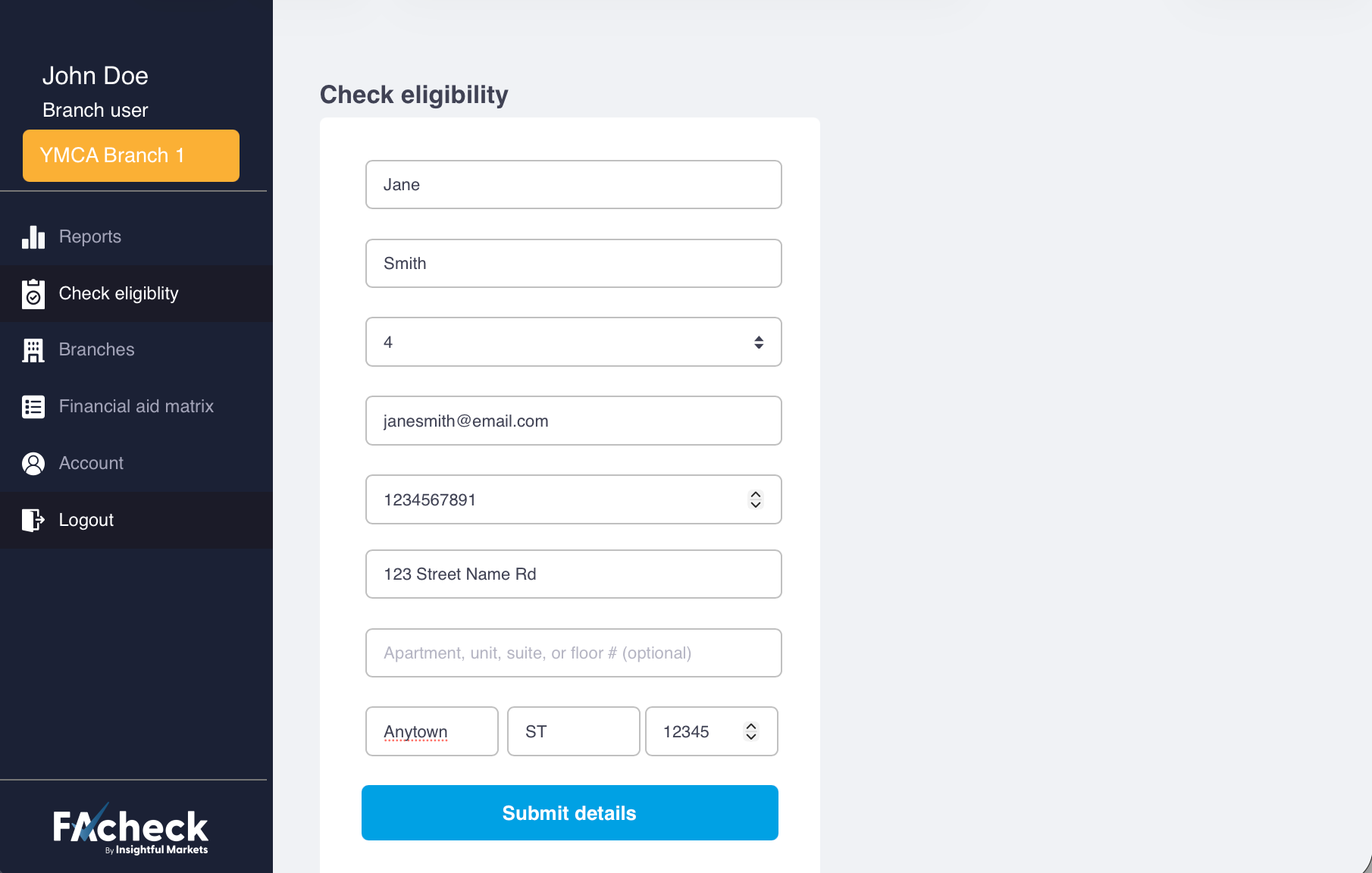
Make sure all details are correct before submitting.
Step 3: Submit the Form
Click Submit Details to run the eligibility check. Results are returned instantly. See Understanding Results section to learn more about this.
Important
- All required fields must be filled out.
- Email and phone are required if Daxko integration is enabled. See more details in section below.
- Double-check spelling for best match results.
Understanding Results
Qualified
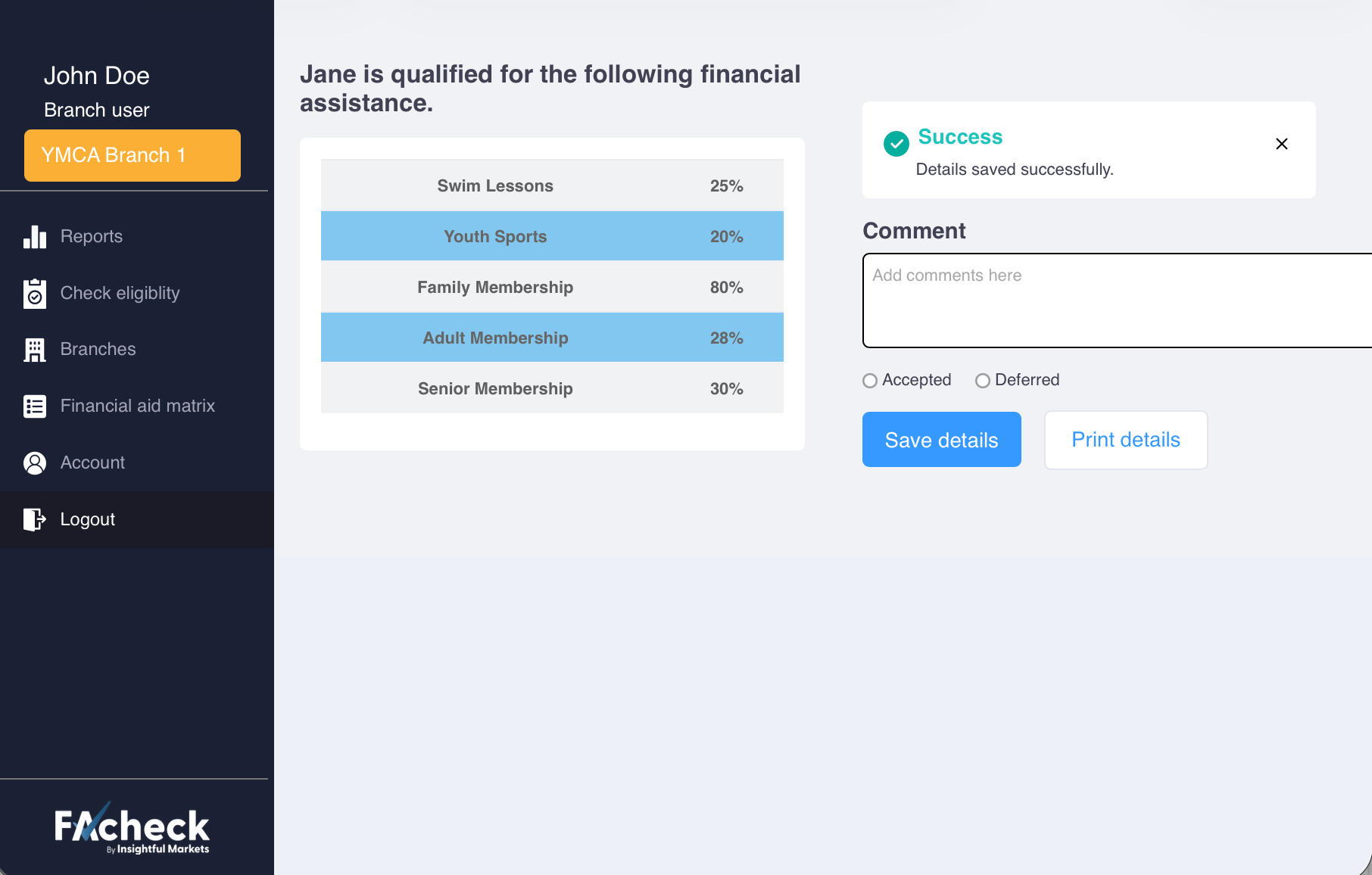
The member qualifies for financial assistance. You will see percentages for different programs such as memberships, swim lessons, or youth programs.
Not Instantly Qualified
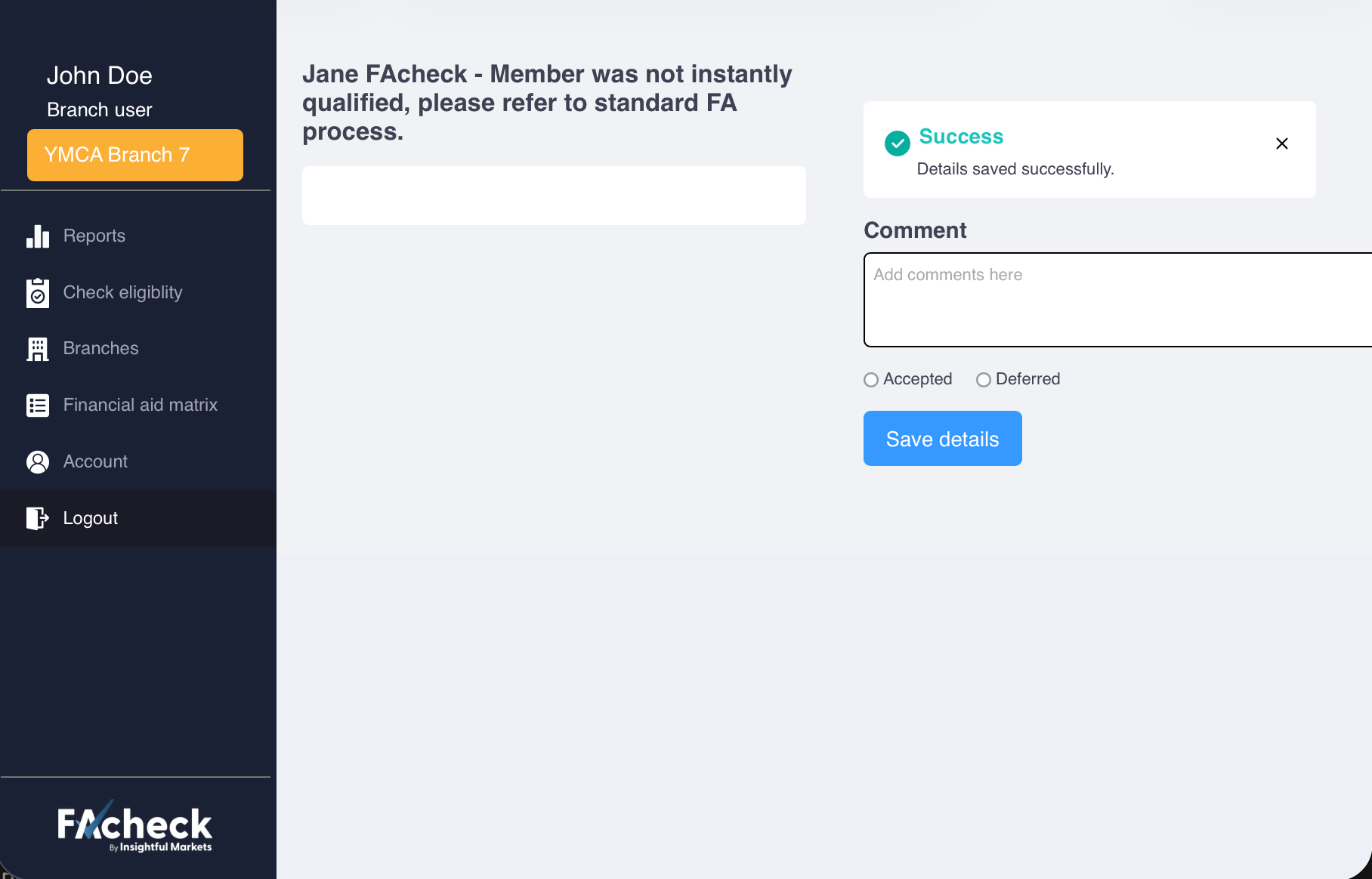
The member does not qualify automatically.
You should continue with your organization’s standard financial assistance process.
No Match Found
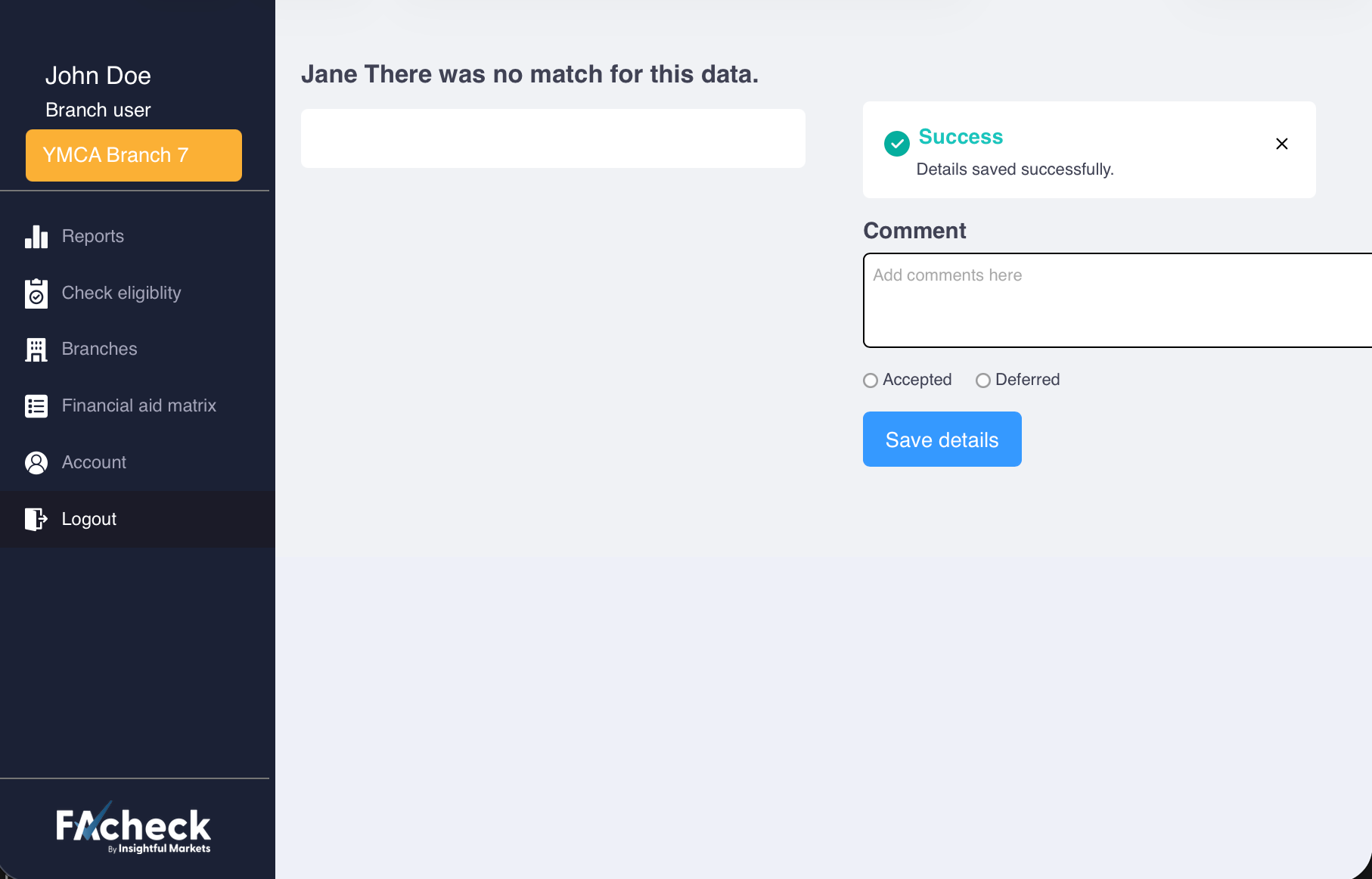
FAcheck could not find a matching record. (A new prospect may be created in Daxko if the integration is enabled.)
Next Steps
- Add comments about the result. (This area is for your to add notes about the entry.)
- Select Accepted or Deferred. (This is the option that the prospect member chose after the information is delivered.)
- Click Save Details.
- Print results if needed.
Roles
This section outlines the core responsibilities and permissions assigned to Account Admins and Users within the system. It provides a high-level overview of the tasks they are authorized to perform to support daily operations and user management.
| Task | Association Admin | Branch Admin | Branch User |
|---|---|---|---|
| Check Eligibility | ✅ | ✅ | ✅ |
| Access Reports | ✅ | ✅ | ✅ |
| Add Branch User | ✅ | ✅ | |
| Edit and Add Branches | ✅ | ||
| Edit Association Information | ✅ | ||
| Add Branch Admin | ✅ | ||
| Add Association Admins | ✅ | ||
| View Financial Assistance Table | ✅ | ||
| Edit Financial Assistance Table | ✅ |
Differences Between Roles
What is an Association Admin
Association Admin roles are assigned by us to the person(s) indicated by the Association main contact at the time of setup. They do not assign themselves since this role has the highest level of control of your account.
What is a Branch Admin
Branch Admins are users that can
Integration with the Daxko application
Admin Access Required
Only Association Admins can set up the Daxko integration. If you do not have access, contact your system administrator.
How the Integration Works
When you submit a member through FAcheck, the system automatically searches Daxko using the member’s last name and email address.
If a match is found:
- A note is added to the member record
- The note includes eligibility results and assistance amount
If no match is found:
- A new prospect is created in Daxko
- All submitted information is carried over
- A note is added to the new record
This process happens instantly after clicking Submit.
Important Requirements
- Email and phone number become required when integration is enabled
- These are required by Daxko to create a prospect record
How to integrate with your FAcheck system
This can be done through three easy steps at any time.
Step 1: Authorization.
A signed Data Access form is required to allow FAcheck to connect to your Daxko account. Once signed, it is submitted to Daxko for approval.
Step 2: Add Branch Numbers.
- Log into FAcheck
- Click Branches
- Click Edit next to each branch
- Enter your Daxko branch number
- Click Save
Branch numbers should start with a capital "B". Contact your Daxko representative if you don’t know your number.
We are able to assist with this step. Please contact us via our Support email.
Step 3: Enable Integration
- Go to Account
- Find the Daxko Integration toggle
- Turn it ON
- Click Save
Once enabled, FAcheck will automatically sync with Daxko.
What Gets Saved in Daxko
- Eligibility results
- Assistance percentages
- Staff comments
- Member or prospect details