Re-Verification
User Tutorial
Reverify 10 Members at Once -
Save Hours Every Year
The Re-Verification process allows you to select members from the Report view, run a renewal check, and review updated qualification results. Previous records are preserved for reference, making it easy to compare past and current qualification information.
Please Note!
When re-verifying someone in FAcheck, we highly recommend leaving members alone whose results come up similar to their previous check and never automatically adjust anyone down, because of the re-verification without asking them to go through your standard process.
As a reminder, FAcheck should never disqualify anyone from receiving financial assistance. If someone no longer qualifies after reverification, please ask them to go through your standard process to reverify.
Step 1 — Open the Report & Select Members
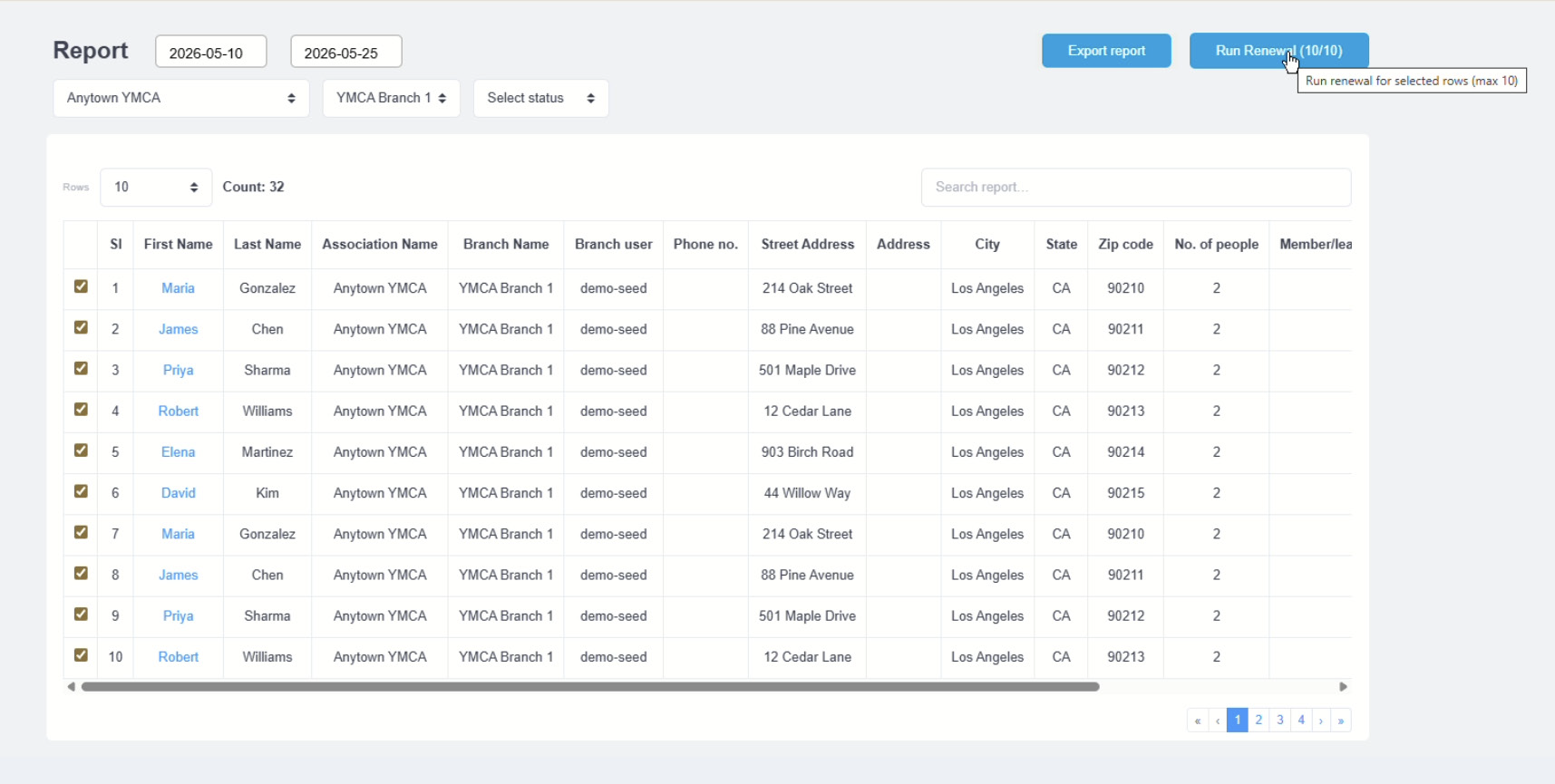
Navigate to the Report page and set your desired date range, association, and branch filters. The report table will list all members along with their current qualification status. To select members for renewal, check the checkbox next to each row. You can select up to 10 members at a time. As you select rows, the Run Renewal button in the top-right updates to reflect the count — e.g., Run Renewal (10/10).
Step 2 — Click "Run Renewal"
Once your desired members are selected, click the
Run Renewal
button. The system will re-check each selected member's eligibility against the latest available data and plan configurations.
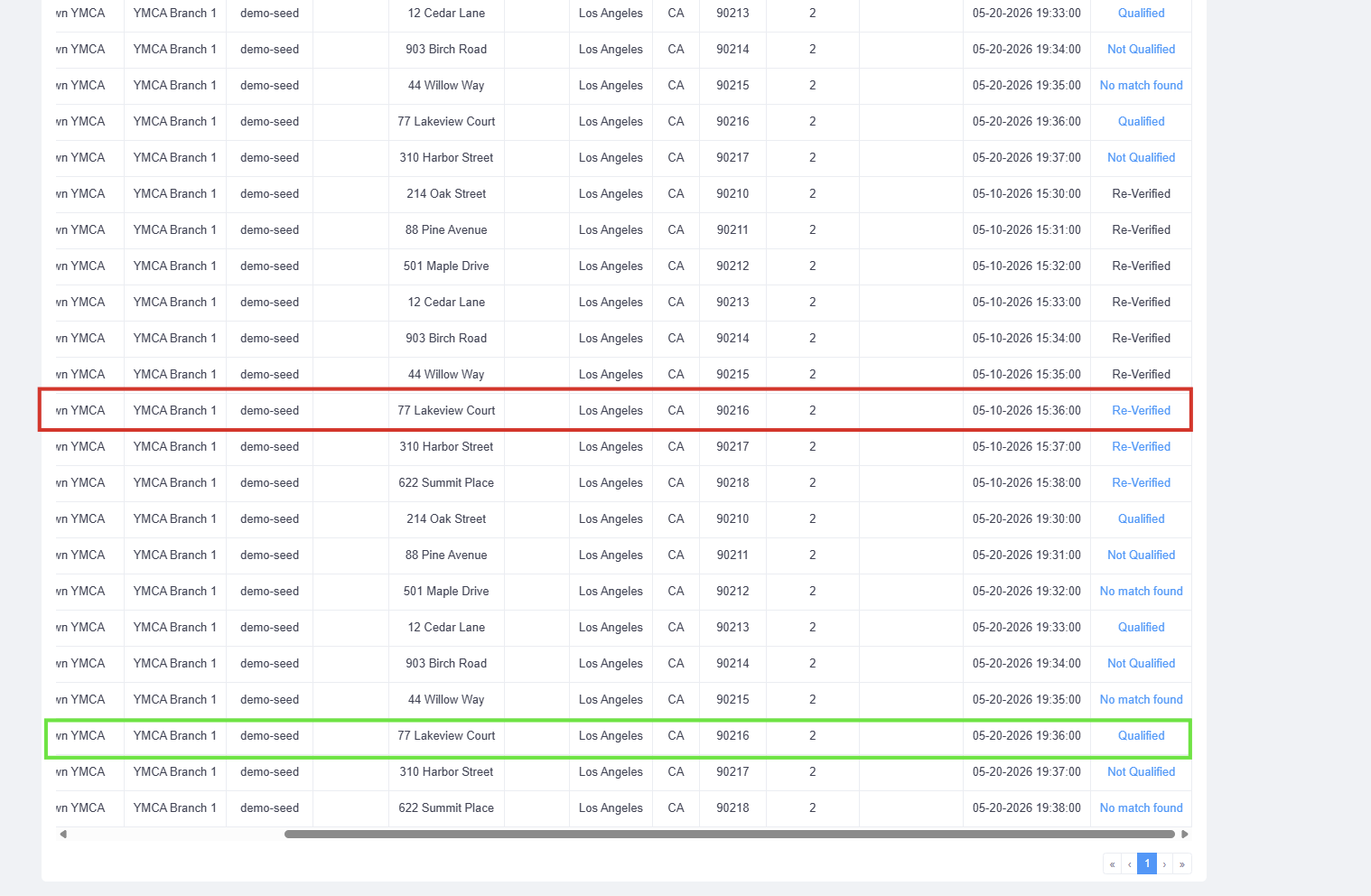
Step 3 — Old Records Are Preserved — Status Changes to "Re-Verified"
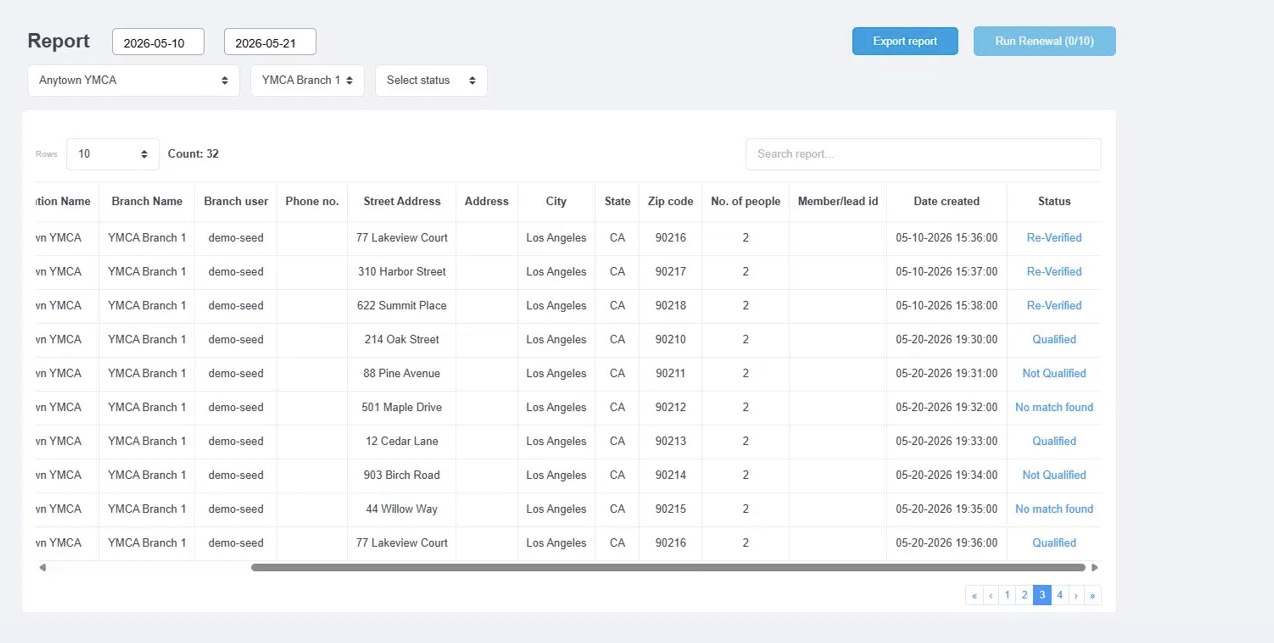
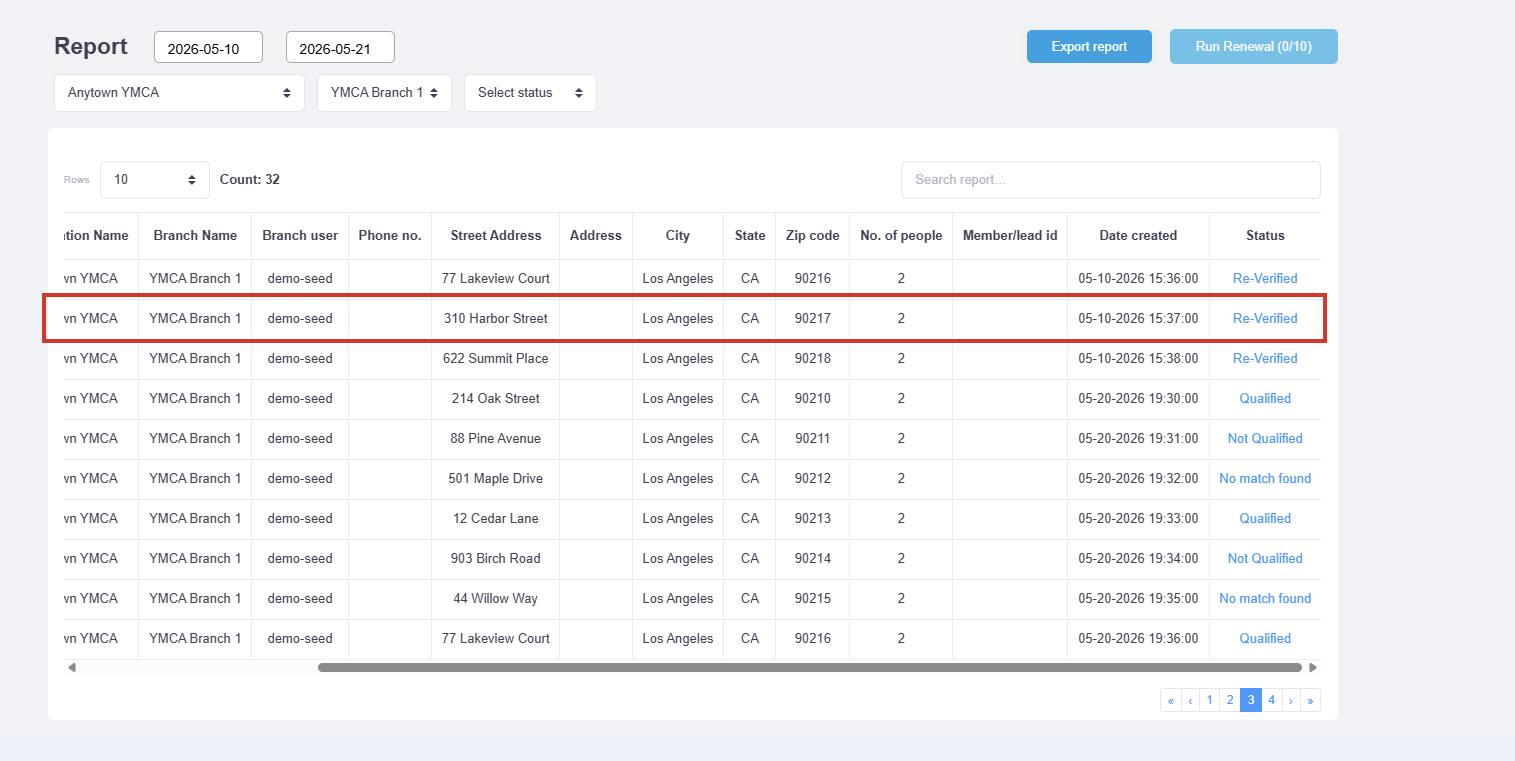
This is a key behavior: when a renewal is run, the
original records are not edited or deleted. Instead, their status is updated to
Re-Verified, indicating that a fresh check was performed.
Step 4 — New Records Are Created on the Renewal Date
For every member the renewal ran on, a new record is created with the date the renewal check was executed. These carry the updated qualification status: Qualified, Not Qualified, or No match found.
Step 5 — Click a Status to View Details & Plan Changes
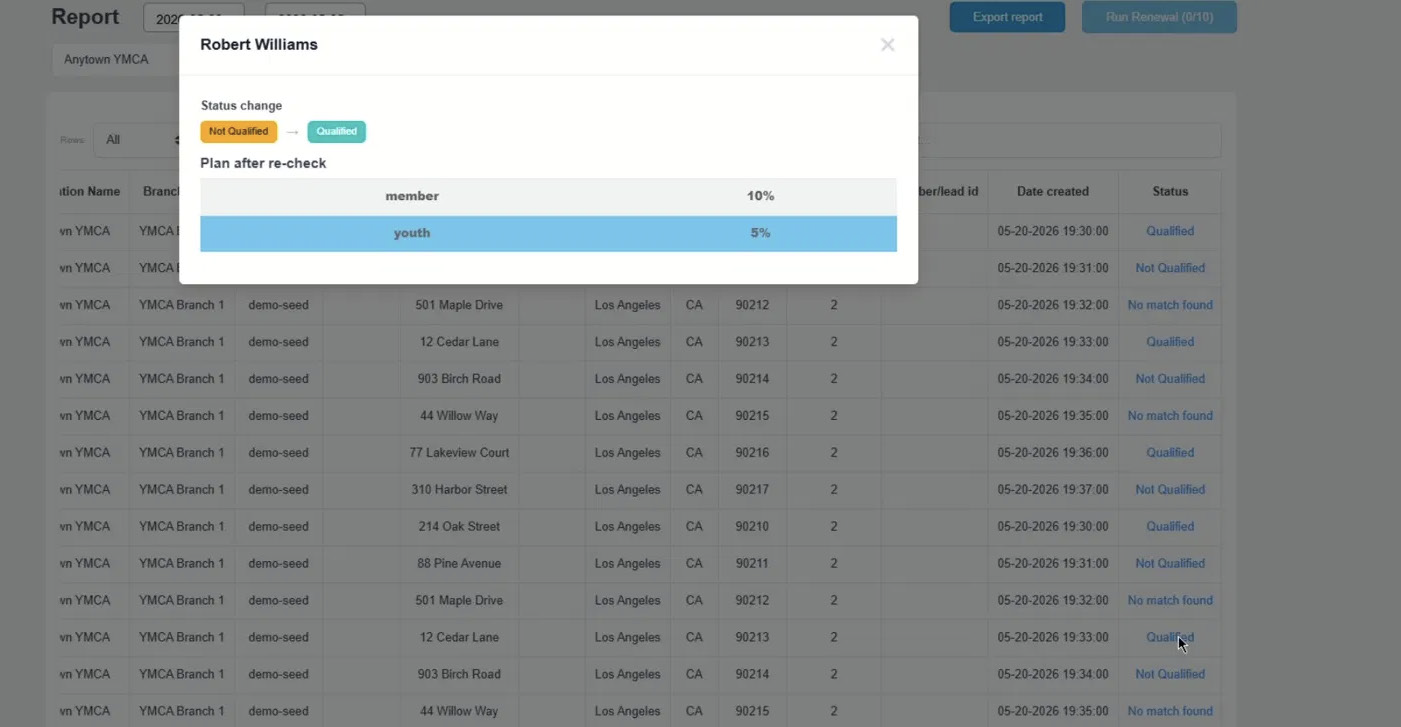
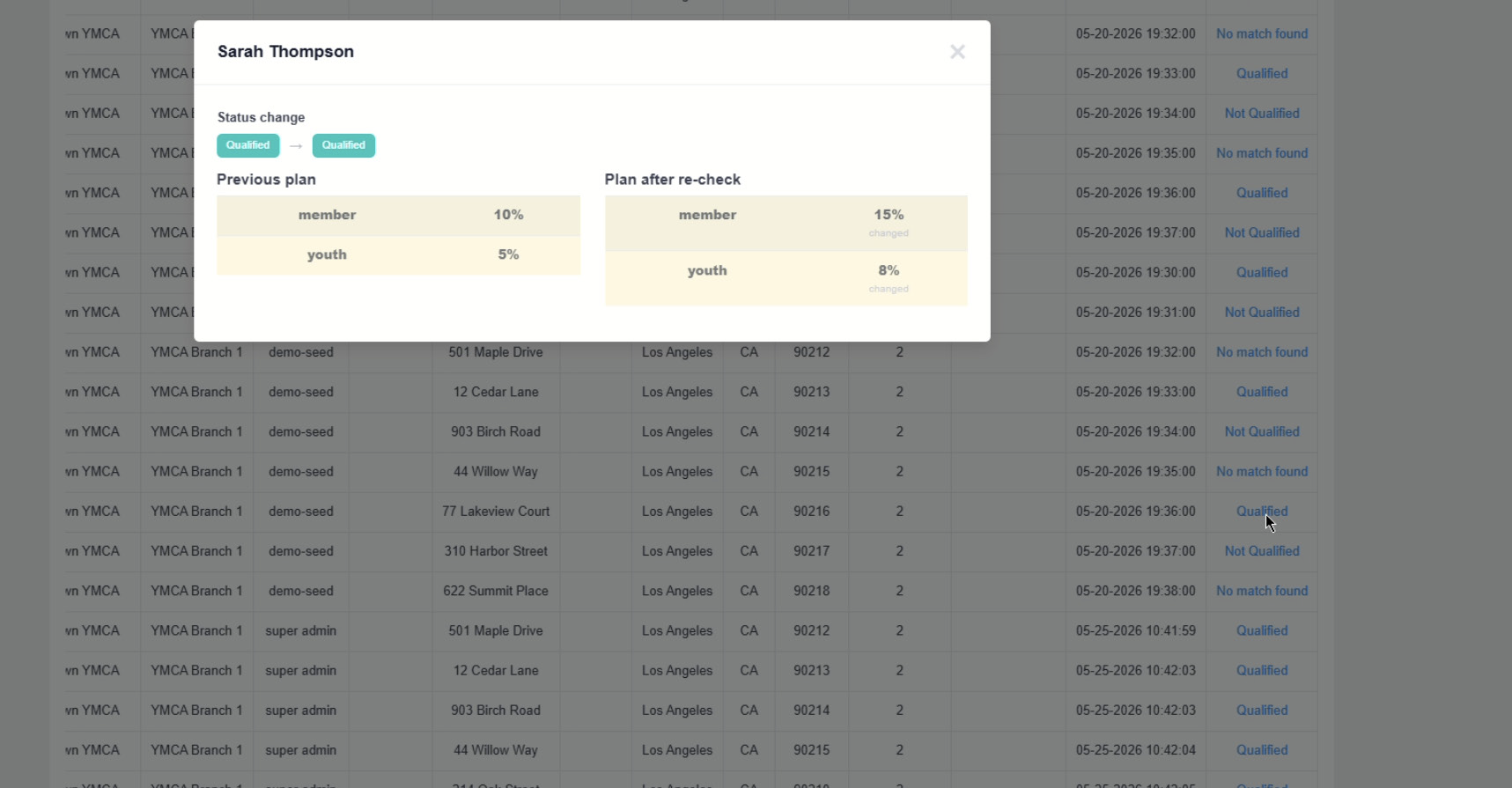
Clicking on a status link (Qualified, Not Qualified, etc.) opens a detailed modal showing the previous status, the new status after re-check, and updated plan discount rates.
Scenario A — Qualified → Qualified (rates updated)
The member stays Qualified but plan rates have changed. Both old and new rates are shown with "changed" indicators.
Scenario B — Not Qualified → Qualified (newly eligible) The member was not egible before but now qualifies. Only the new plan is shown.